Apple Shortcut
Save links to Faved from the Share Sheet on iOS, iPadOS, and macOS — and the Services menu on Mac.
The Apple Shortcuts integration lets you send links straight to Faved without leaving the app you're in. Tap Share in Safari, your RSS reader, or anywhere else on your Apple device, pick Add to Faved, and the page lands in your library. On Mac, the same shortcut is also a click away in the Services menu.
Setting up the shortcut
Open the shortcut
Go to Settings › Integrations › Apple Shortcut and click Install Shortcut, or visit https://www.icloud.com/shortcuts/2411a2c26a084a99bd006ea7cca14d22. Then click Get Shortcut on the opened page. You'll be redirected to the Apple Shortcuts app to proceed with the setup.

Begin setup in the Shortcuts app
In the Apple Shortcuts app, click Add Shortcut... on Mac, or Set Up Shortcut on iPhone/iPad.
Enter your Faved URL
When prompted, enter the Faved Cloud URL, https://app.faved.to.
Confirm to finish
Click Add Shortcut to confirm. The Add to Faved shortcut is added to your Shortcuts library, and the Add to Faved action now appears in your Share Sheet — and in the Services menu on Mac.
TIP
Ensure iCloud sync is enabled for the Shortcuts app to have it available on all your Apple devices.
Saving a link
Using the Share Sheet
Open the webpage
Open the webpage you want to save in Safari or another browser on your iPhone, iPad, or Mac.
Open the Share Sheet
Tap or click the browser's Share button.
On Mac, you can also use the app's File → Share menu.
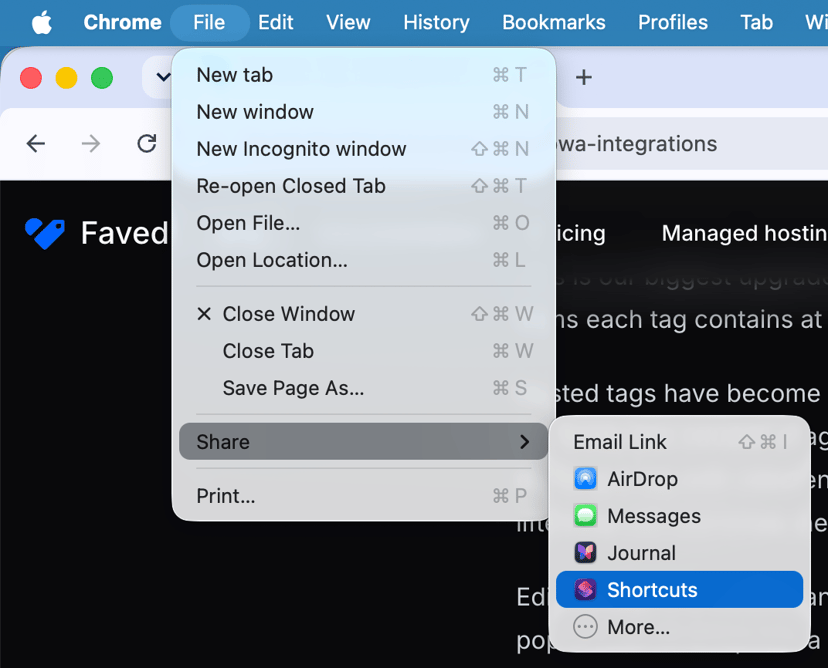
Choose Add to Faved
Select Add to Faved to send the current page or link to Faved.
On Mac's Share menu, choose Shortcuts first, then Add to Faved.
TIP
On Mac, if the shortcut doesn't appear in the Share menu, check System Settings → Privacy & Security → Extensions → Sharing and ensure Shortcuts is enabled.
Select the record type
The save form opens with the page's details. Under Type, choose what kind of page this is, such as a product, recipe, or a simple bookmark. The form shows that type's fields.
Fill in the fields and save
Extract the fields from the page or fill them in manually, then click Save. The page will be stored and available in Faved.
Using the Services menu (Mac)
Select a link
Highlight any visible URL in any app, or right-click a selected link in your browser.
Open the Services menu
Open the Services menu and select Add to Faved to send the selected link to Faved.
Select the record type
The save form opens with the link. Under Type, choose what kind of page this is, such as a product, recipe, or a simple bookmark. The form shows that type's fields.
Fill in the fields and save
Extract the fields from the page or fill them in manually, then click Save. The selected link will be stored and available in Faved.