Select fields
Organize records with options you define, as tags, categories or a folder tree.
A select field holds a set of options, and each record picks one or more of them. Options can be nested, colored, described and pinned, which makes a select field work like a folder tree. It's also a perfect fit for holding tags.
Options in the sidebar
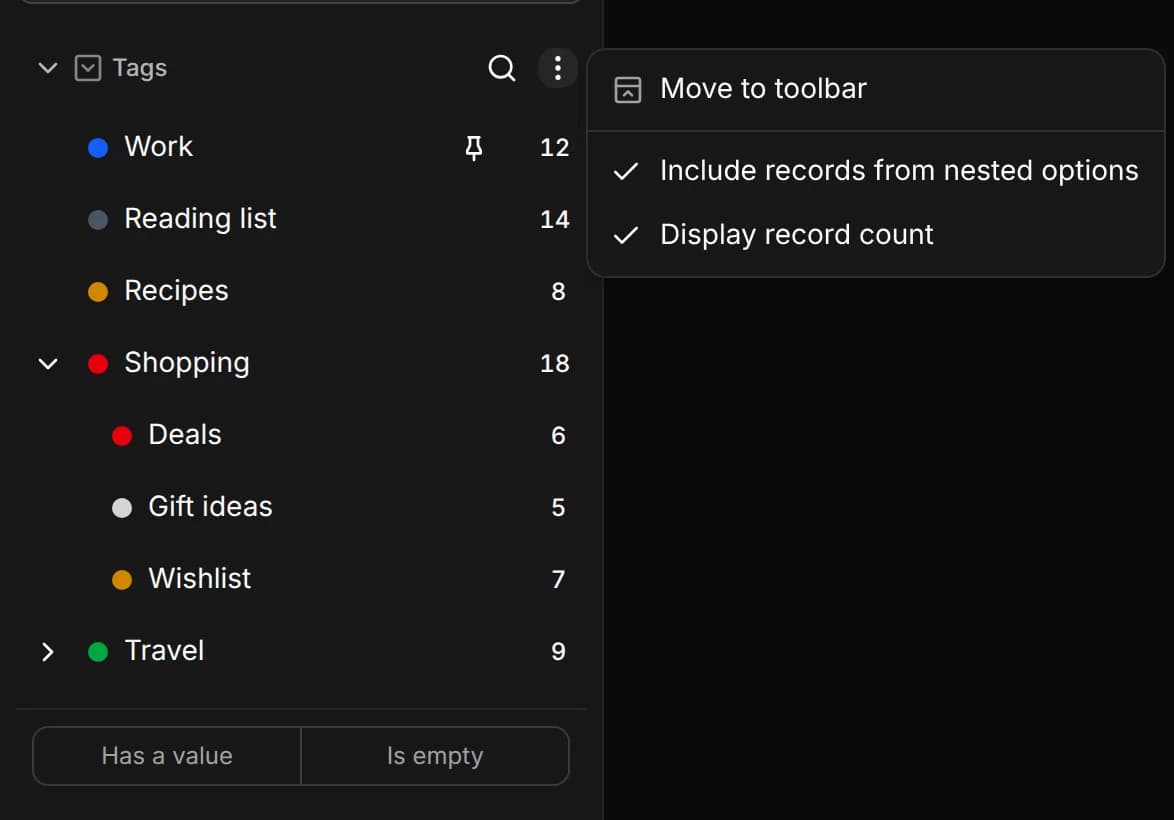
Select fields show up in the sidebar as a list of options. Click an option to filter the list to records that have it. Below the options, Has a value and Is empty filter by whether a record has any option at all.
Each field's header in the sidebar has:
- a search button, to filter long lists of options,
- a More menu with Include records from nested options, which shows a parent option's records together with those of the options inside it, and Display record count,
- Move to toolbar, to show the field as a filter chip above the list instead.
Creating options
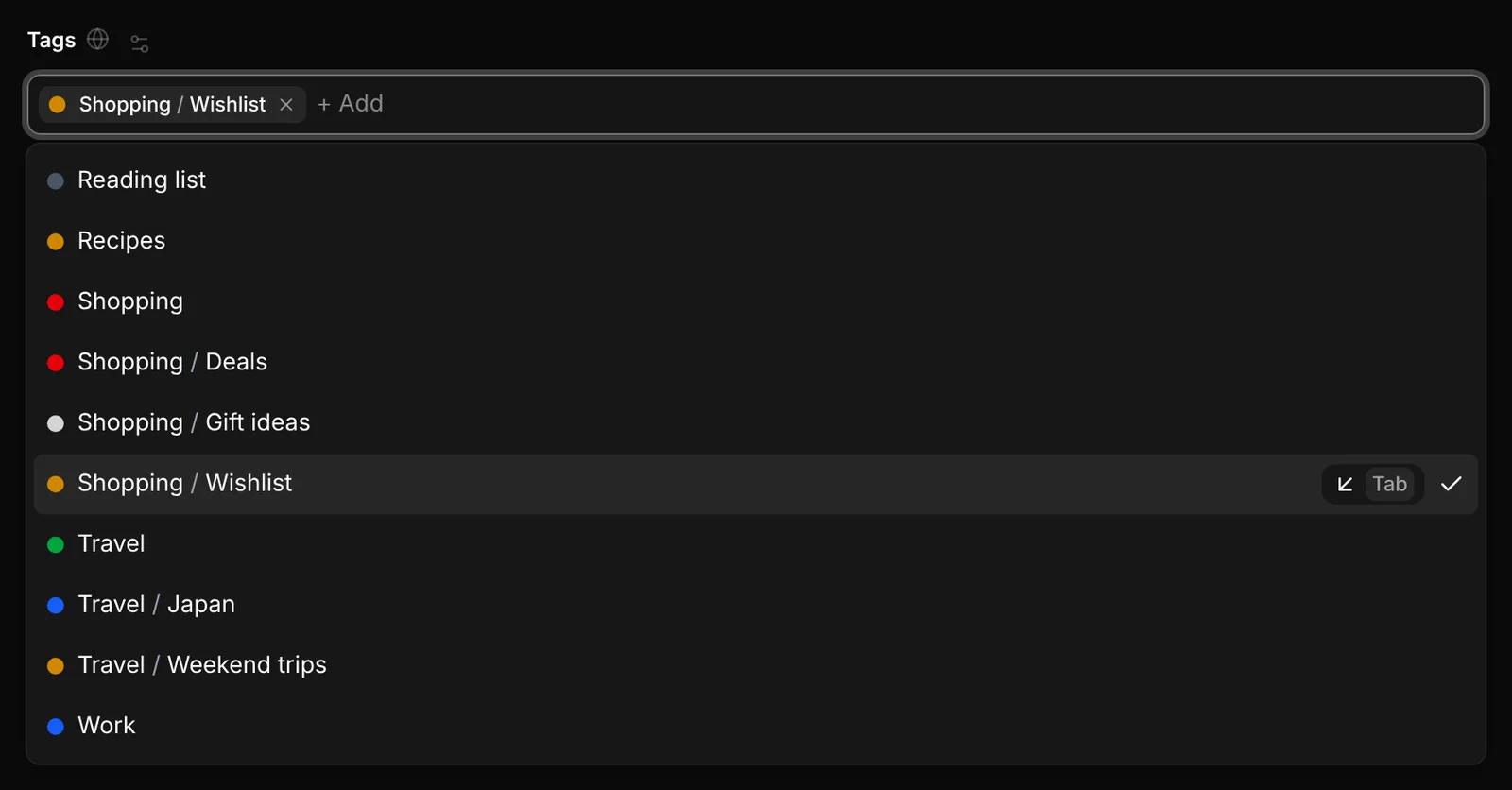
- In a record. In a select field, type a name and choose Create. To create a nested option, type the parent and the child with a slash, such as
Programming/Python. - In bulk. In the bulk Edit field picker, type a new name to create it.
- In the options editor, with Add an option; see below.
When Extract fills a select field, it matches the page to the options you already have; it never adds new options.
Managing an option
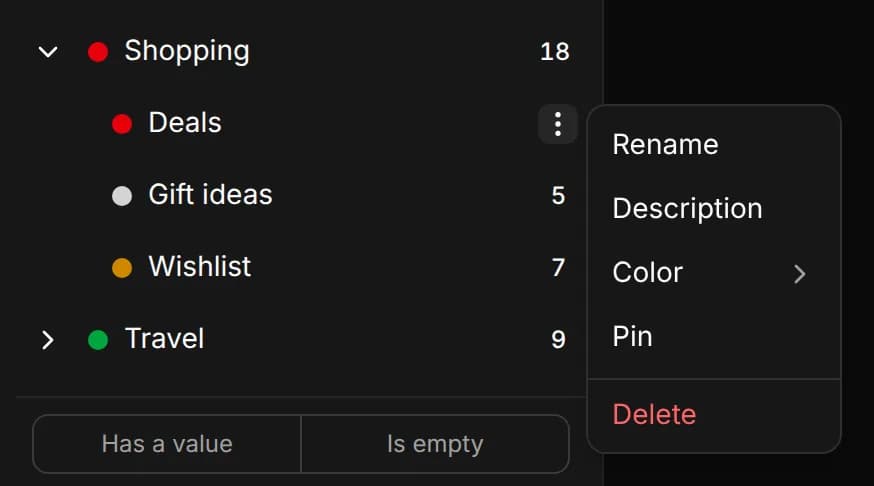
Each option in the sidebar has a More menu:
- Rename
- Description, shown when you point at the option
- Color: gray, green, red, yellow, aqua, white or black
- Pin, to keep it at the top of the list
- Delete
WARNING
Deleting an option takes it, and every option nested inside it, off every record. This can't be undone.
Nesting and ordering
Options sort alphabetically by default. To arrange them yourself, switch the field to Manual order in its Options editor. Then press and hold an option in the sidebar and drag it to reorder it, or drop it onto another option to nest it. Reset to A–Z goes back to alphabetical order.
Nesting needs Allow nested options turned on for the field. Pinning works when the field sorts A–Z.
The options editor
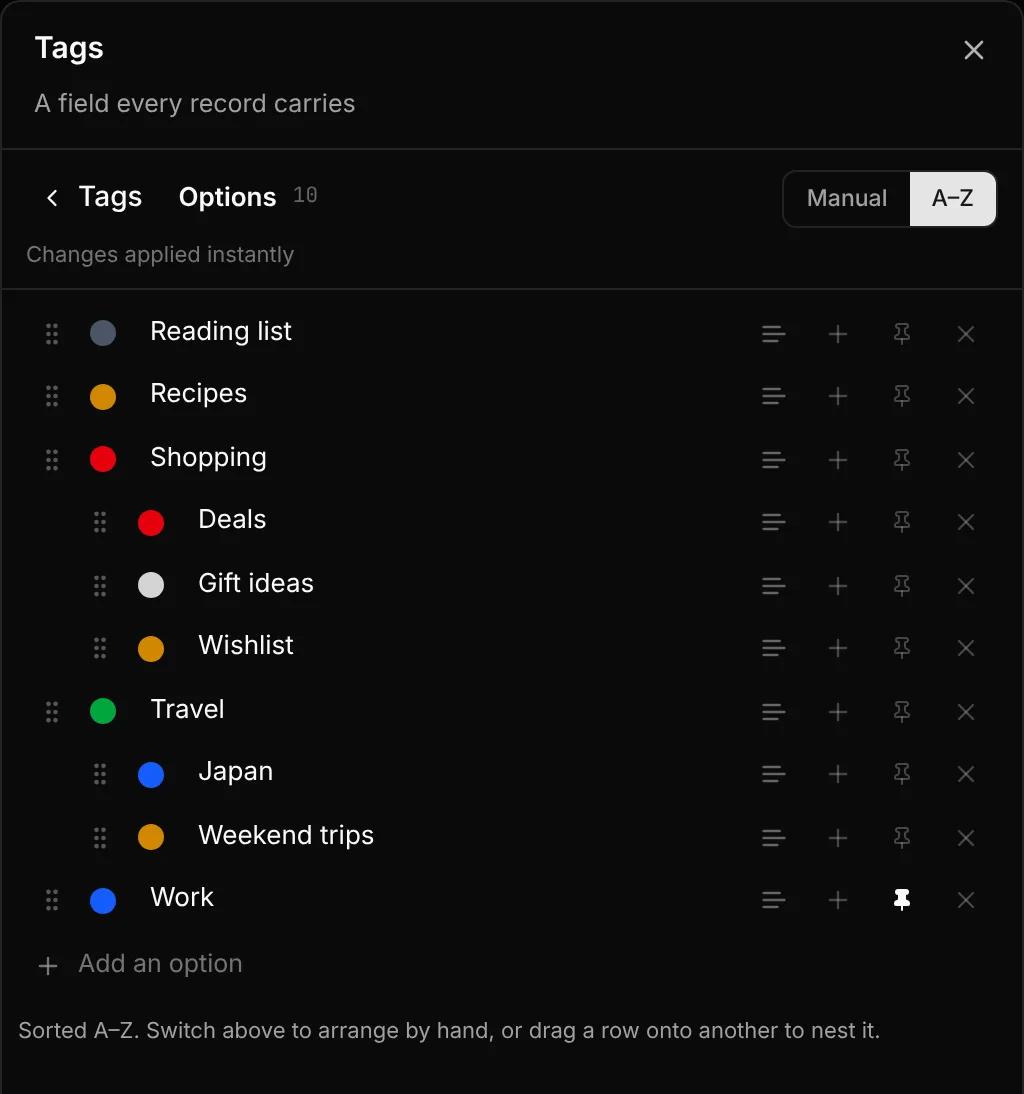
In Types and Fields, open a select field and click Options to manage all its options in one list. Changes apply right away.