Bulk actions
Change, extract or delete many records at once.
Select records with their checkboxes. A bar appears showing how many are selected; click the count to select or clear the whole page. Then choose an action.
Change type
Gives the selected records a new type, along with that type's fields. Fields in the new type with the same name as fields in the old one keep their values, and so do global fields. The new type's other fields start empty. You can fill them in for all the selected records at once, by hand with Edit field, or with Extract for fields filled by extraction.
Edit field
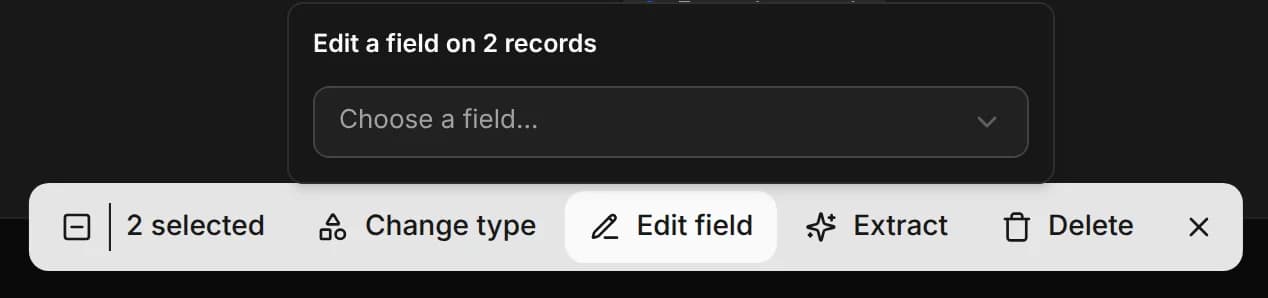
Sets or clears one field on every selected record. Choose a field, then:
- enter a value and click Set, or
- click Clear to empty it.
The picker lists only the fields that every selected record has. If you've selected records of different types, it will display only the global fields for editing.
For a select field, each option has three states: ticked puts it on every record, a dash leaves it as it is, and unticked takes it off. Tick Replace to keep only the ticked options. Then click Apply changes.
Extract
Runs Extract on the selected records in the background. See Extracting from the list.
Delete
Deletes the selected records after you confirm.
WARNING
Deleting removes the records, their field values and their extracted pages. This can't be undone.