Types and fields
Give records a type, and decide which fields each type carries.
A type says what kind of thing a record is, such as a product, a recipe or a job posting. Each type owns a set of fields, so a Product can carry a price and a brand while a Recipe carries a cuisine and a cooking time. Global fields sit on every record, whatever its type.
Opening Types and Fields
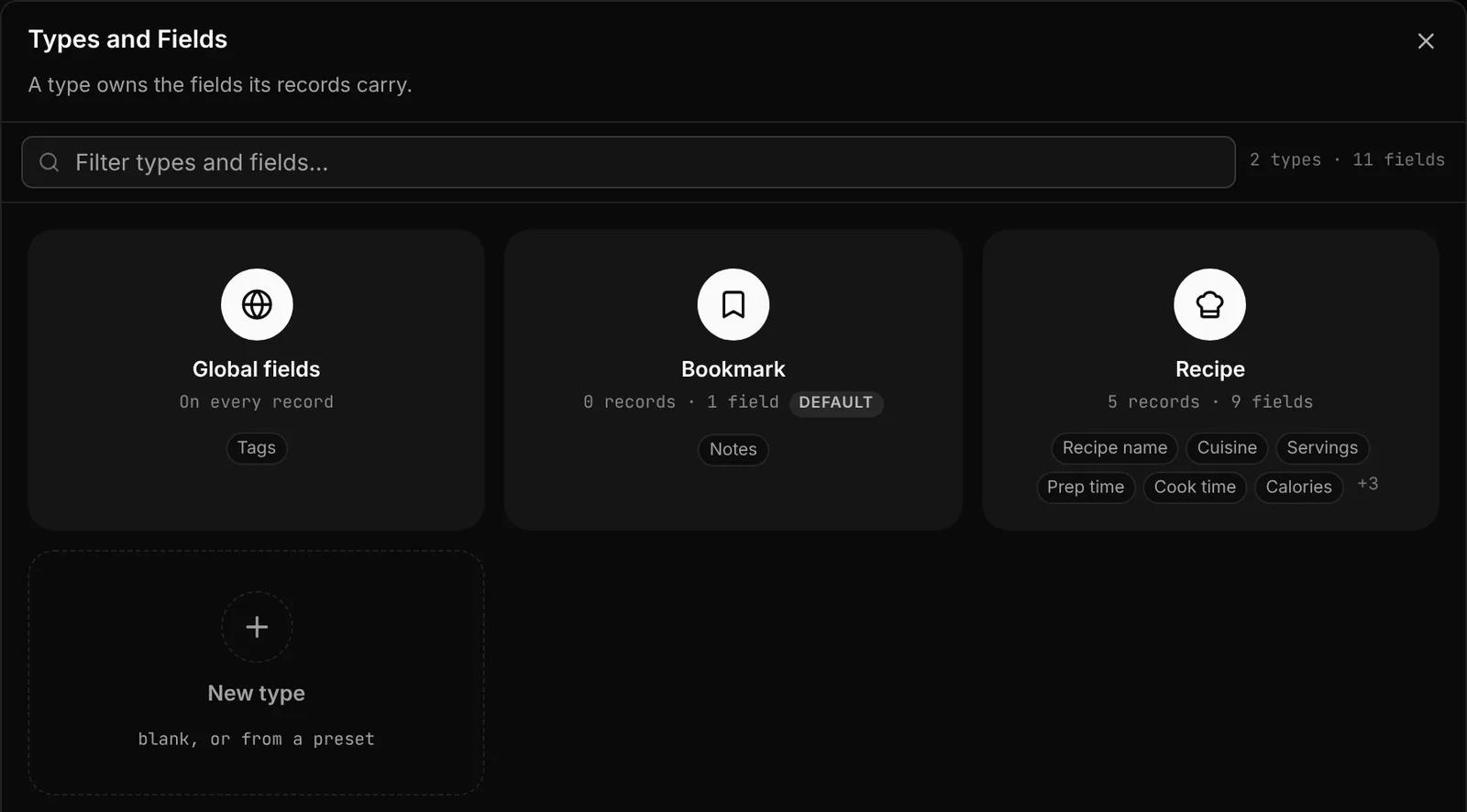
Types and fields are managed in the Types and Fields dialog. Open it from:
- the shapes icon in the sidebar,
- Manage types… at the bottom of the sidebar's Types list or the record form's type picker,
- Set up types… in the bulk Change type menu.
The dialog shows a Global fields card, then a card for each type with its number of records and fields. Drag the cards to reorder the types.
Creating a type
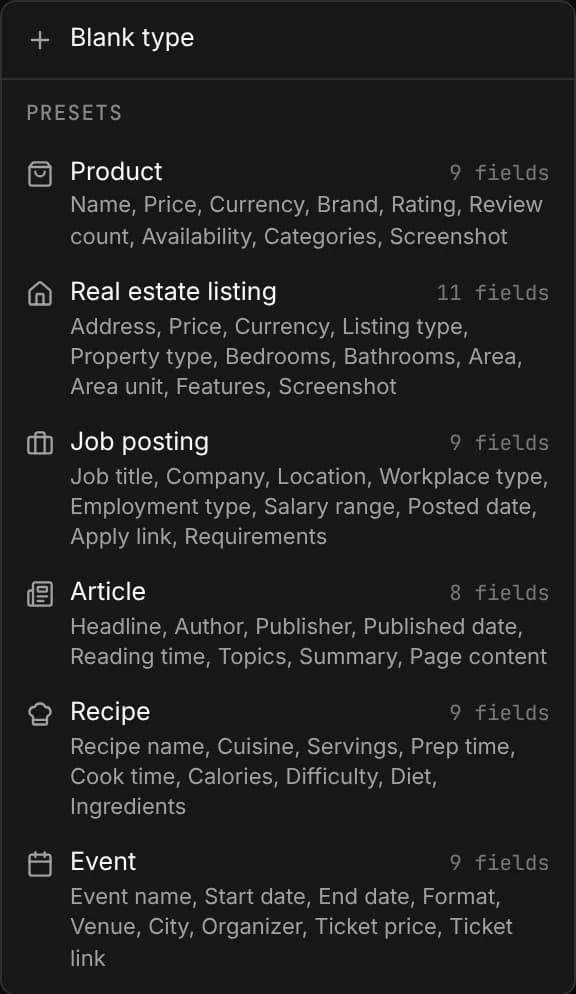
Click the New type card and choose:
- Blank type, to start with no fields, or
- one of the Presets, which come with fields ready to fill from the page:
| Preset | Fields |
|---|---|
| Product | Name, Price, Currency, Brand, Rating, Review count, Availability, Categories, Screenshot |
| Real estate listing | Address, Price, Currency, Listing type, Property type, Bedrooms, Bathrooms, Area, Area unit, Features, Screenshot |
| Job posting | Job title, Company, Location, Workplace type, Employment type, Salary range, Posted date, Apply link, Requirements |
| Article | Headline, Author, Publisher, Published date, Reading time, Topics, Summary, Page content |
| Recipe | Recipe name, Cuisine, Servings, Prep time, Cook time, Calories, Difficulty, Diet, Ingredients |
| Event | Event name, Start date, End date, Format, Venue, City, Organizer, Ticket price, Ticket link |
Select fields in presets come with a starting set of options, such as In stock and Out of stock for Availability. Change any of it afterwards.
Managing a type
Open a type's card to manage it:
- Rename it by clicking its name (up to 40 characters).
- Change the icon by clicking it. The picker suggests icons for the type's name.
- Set as default. Records saved without a type land in the default type. The first type you create becomes the default automatically.
- Duplicate or Delete it from the card's menu in the overview.
When you delete a type that holds records, choose what happens to them: Move to another type, keeping values in fields that type also has, or Delete them too. Deleting records asks you to type the type's name to confirm.
Global fields and type fields
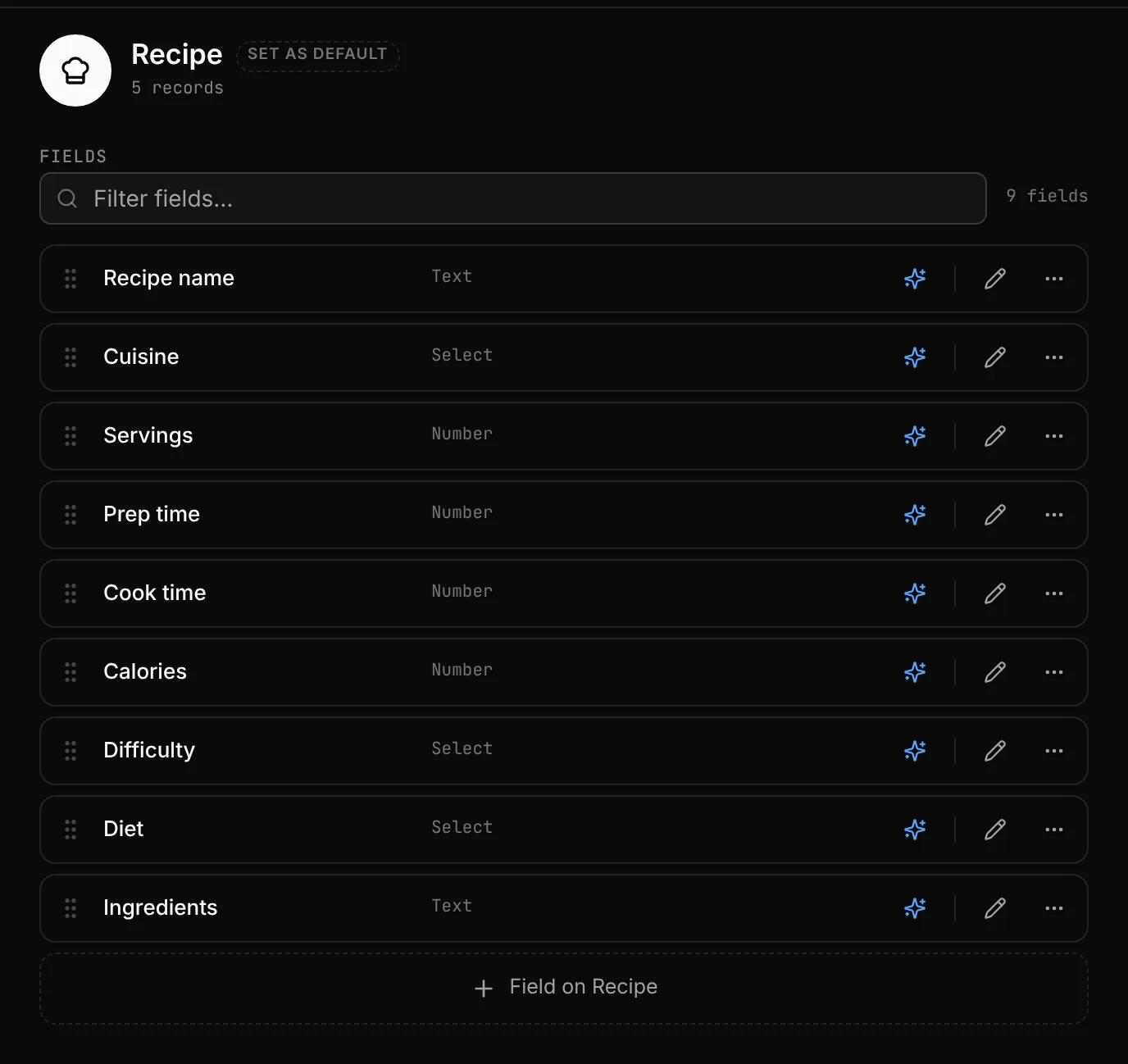
- Type fields belong to one type, and only its records have them. Add one on the type's page with its Field on … button, such as Field on Product.
- Global fields are on every record, of every type. Add one on the Global fields page.
You can also add a field from the record form with + New field, choosing this record's type or all types.
To move or copy a field elsewhere, use its More menu: Move to another type… or Copy to another type…. A copy starts with the same settings and no values.
Field formats
| Format | What it holds |
|---|---|
| Text | A line of text, or with Multi-line on, room for notes and longer text |
| Number | A plain number you can sort by, with an optional unit such as €, kg or min. Turn on Whole numbers only to drop decimals |
| Date | A day, or a day and a time with Include time on |
| Checkbox | Yes or no |
| Link | A URL that opens in a click |
| Select | One or more options you define. Turn on Multiple can be picked and Allow nested options as needed. See Select fields |
| Summary | A short summary of the page, written by AI |
| Page content | The full text of the page, as Markdown |
| Screenshot | A snapshot of the page |
What each field gets explains how Extract fills each format. A field's format is locked once records hold values in it; clear them, or add a new field, to change it.
Field settings
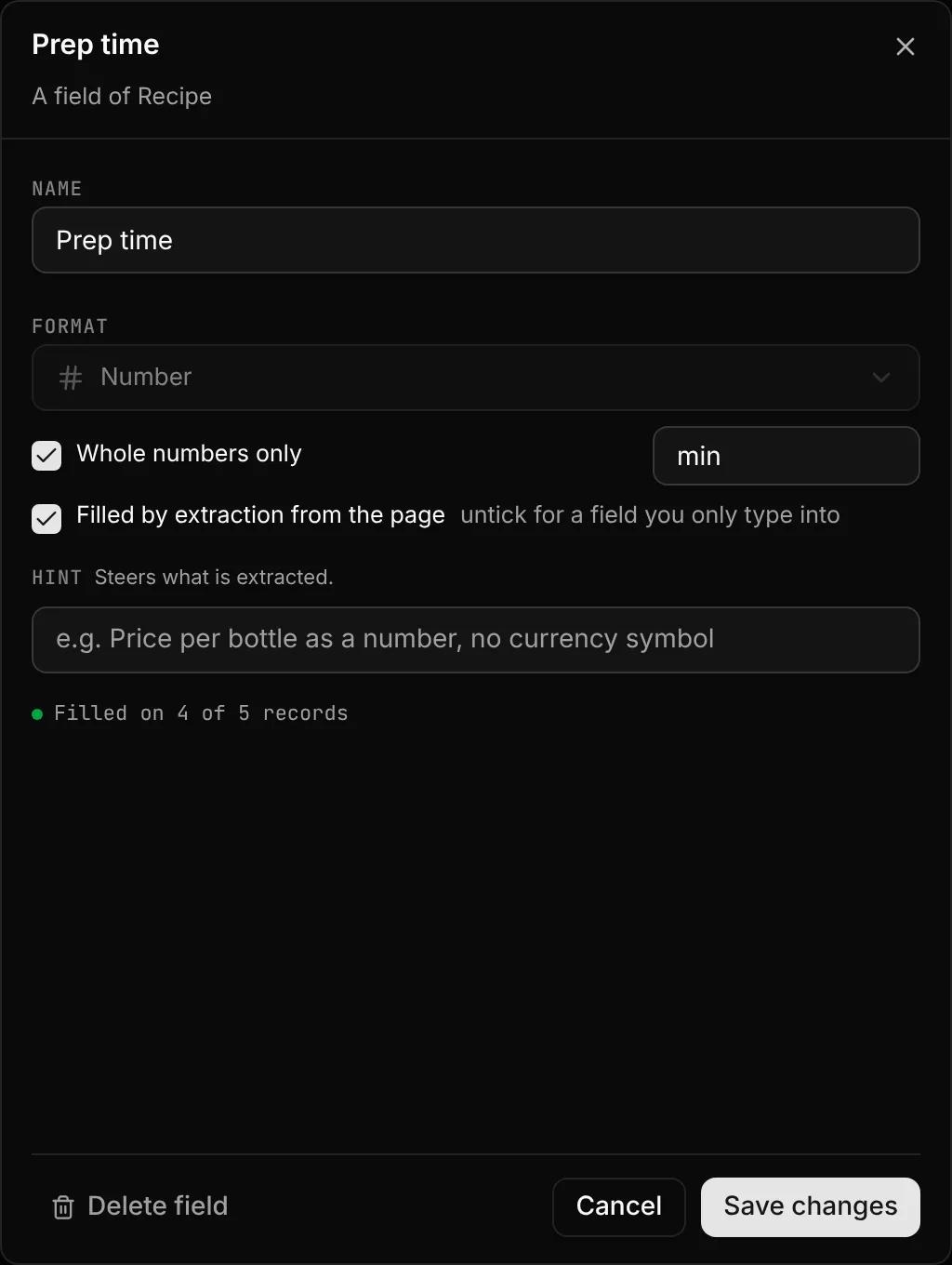
Open a field with Edit to change its name, its format and the format's options listed above. For a select field, the Options button manages its options. Every field also has:
- Filled by extraction from the page. Turn this on for fields Faved should fill when it extracts the page. Leave it off for fields you only type into. It starts off for a new field.
- Hint. A short instruction that steers what's extracted, such as "Price per bottle as a number, no currency symbol".
After you turn on extraction for a field, Faved may offer Fill to extract it for records that don't have a value yet.
WARNING
Delete field removes the field and its values on every record. Deleting a select field also deletes its options. This can't be undone.