Importing your data
Bring your bookmarks over from a browser, Raindrop.io or Pocket.
Go to Settings › Import. Choose where your bookmarks come from: From Browser, From Raindrop.io or From Pocket. Each one imports a file you export from that service.
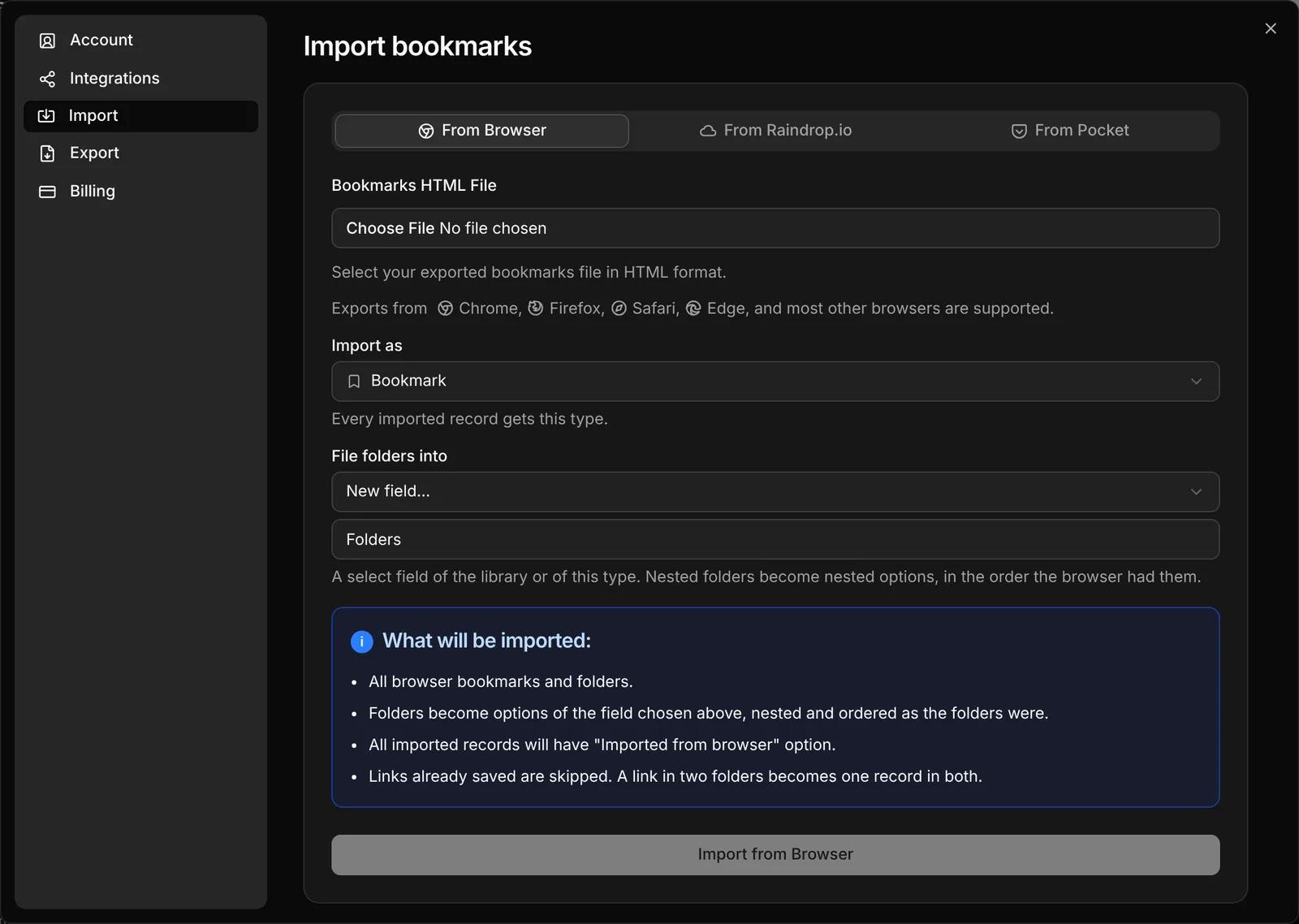
Whichever you choose:
- Import as sets the type every imported record gets. It's your default type unless you pick another.
- Links already saved are skipped, so importing the same file twice doesn't create duplicates.
- When the import finishes, Faved shows how many records were imported and how many were already saved.
From your browser
Export your bookmarks
Export your bookmarks as an HTML file from your browser. Chrome, Firefox, Safari, Edge and most other browsers can do this from their bookmarks manager.
Choose the file
In Settings › Import › From Browser, select the file under Bookmarks HTML File.
Choose where folders go
Under File folders into, pick a select field for your folders: an existing one, or New field…, which creates one called Folders. Choose None to import every bookmark without its folder.
Import
Click Import from Browser.Your folders become options of the chosen field, nested and ordered the way the browser had them. A link that was in two folders becomes one record with both options. Every imported record also gets an Imported from browser option.
From Raindrop.io
Export from Raindrop.io
In Raindrop.io, export your bookmarks as an HTML file.
Choose the file
In Settings › Import › From Raindrop.io, select the file under Raindrop.io HTML File.
Choose where collections go
Under File folders into, pick a select field, or None to skip collections and tags.
Import
Click Import from Raindrop.io.Your collections and tags become options of the chosen field, nested the way your collections were. Every imported record also gets an Imported from Raindrop.io option.
From Pocket
Pocket closed in 2025. If you downloaded your Pocket export before then, you can still import it.
Choose the ZIP file
In Settings › Import › From Pocket, select the ZIP file you exported from Pocket under Pocket ZIP Archive.
Import
Click Import from Pocket.Faved brings over your bookmarks, tags, collections and notes:
- Unread and Archived bookmarks get options under a Status parent.
- Collections become options under a Collections parent, with their descriptions kept.
- Notes on collection bookmarks go into the Notes field.
- Every imported record gets an Imported from Pocket option.
The options go into your library's Tags field.
TIP
After importing, select the new records and use bulk actions to change their type or extract details from their pages.